
Working Online
Privacy Notice: Your privacy is important. Online sessions are genrally secure, but no internet connection can be 100% guaranteed. By joining, you understand and accept this small risk.
To help protect your privacy and security during sessions, please consider:
- Using a private, quiet space where you won’t be overheard,
- Connecting via a secure, password-protected Wi-Fi network rather than public Wi-Fi,
- Using headphones to keep our conversation confidential,
- Ensuring your device has updated antivirus and security software,
- Closing other apps or tabs that may record audio or video without your knowledge.
How to access a Zoom session:
- Click the Zoom link in your email,
- The link will open in your web browser,
- If Zoom is installed, you’ll be prompted to open the link in the Zoom app; if not, you’ll be prompted to download and install it,
- Click “Open” or “Save” when prompted,

- Once installed, click “open link” to enter the session,
- Zoom will load a preview screen where you can turn on your audio and video (circled in red),
- Below you can select your microphone or webcam from the drop down list if needed,
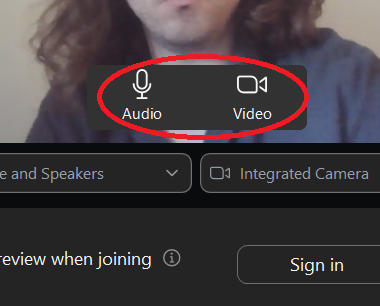
- Ensure your camera and microphone are connected and turned on,
- Click start and you will enter a waiting room—I’ll admit you at the time we agreed,
- To keep focus, you can “pin” my video by right clicking on it. This keeps my video on the screen all the time,
- When the session ends, click “Leave” to exit.
I am happy to support you with any further help setting up your computer to be as secure as possible and around using the Zoom platform.